
Folder tree
Organize folders and temporary files by source directory so you can review them clearly.
Explore, select and delete temporary Windows files visually and safely, with total control over what you want to clean up.
Portable, no installation. The download opens in a new Google Drive tab.
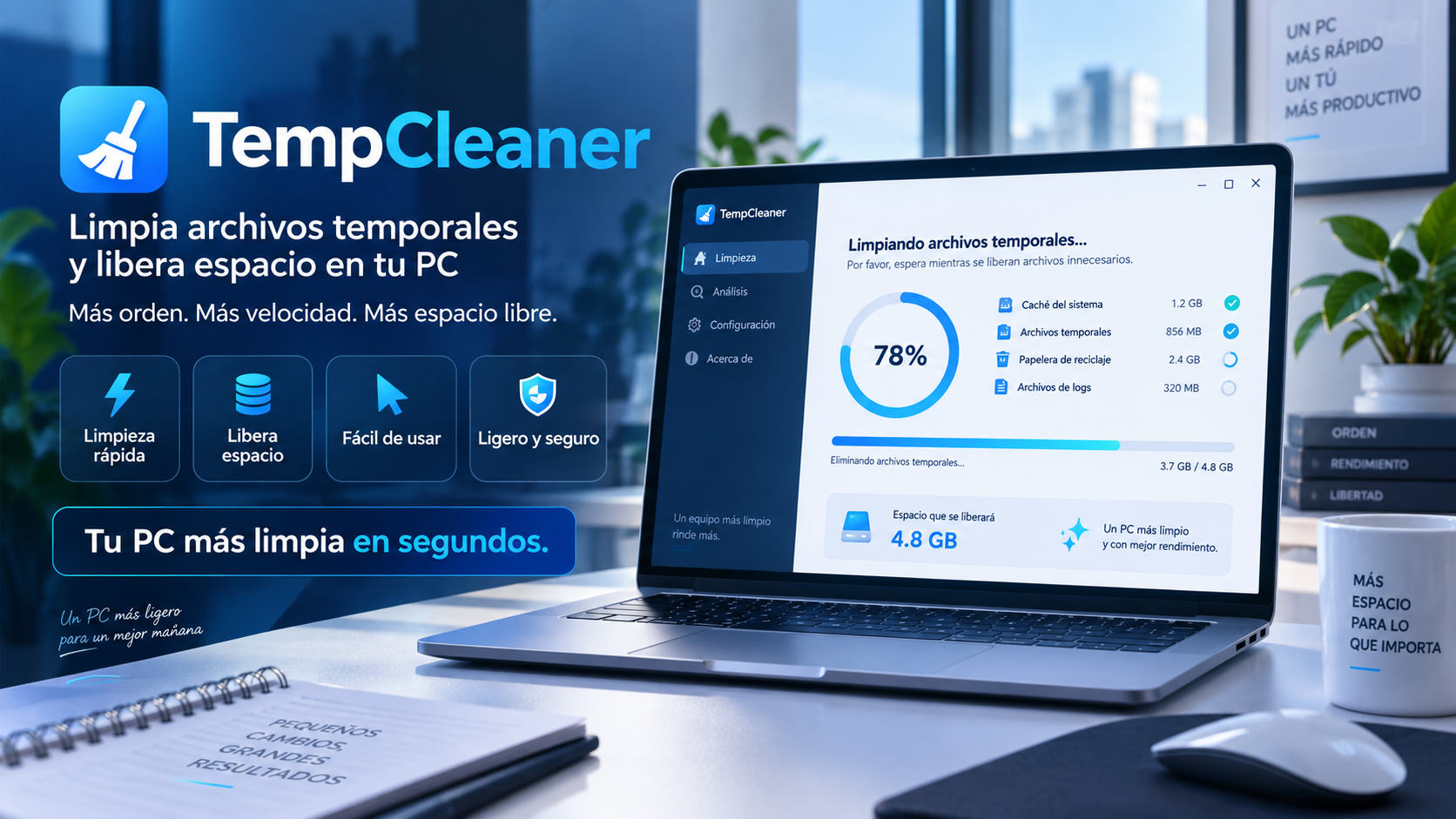
What it does
TempCleaner frees up disk space by removing junk files from the Windows temporary directory, especially AppData\\Local\\Temp.
View a clear folder and file structure so you can decide what to clean up before deleting anything.
Features
Organize folders and temporary files by source directory so you can review them clearly.
Selecting or deselecting a folder automatically applies the change to everything inside it.
Select or deselect all items with dedicated buttons to manage hundreds of files quickly.
Safely skips temporary files that other applications are actively using.
Runs as a single .exe file, with no installation or additional external dependencies.
Check what you're going to remove before cleaning to maintain a more transparent and predictable experience.
How to use it
Run the portable application and let it load the temporary file structure.
Select entire folders, individual files, or use bulk controls to save time.
Delete the selected items while TempCleaner safely skips files that are in use.
Guide and tips
Windows and the applications you use can create temporary files during different tasks. These files can serve to store work information while a process is running and, in some cases, can stay on the system after the task is finished.
Temporary files do not necessarily indicate a Windows problem. Many are used normally by the system and apps, while others remain after installations, updates, or processes that have finished.
TempCleaner is designed to help you review these locations and locate temporary files that can be candidates for cleaning. The application shows the content visually so you can select which elements you want to remove.
Before running a cleanup, review the results and close any applications you are using. Files in active use by other applications may remain protected and should not be deleted while in use.
It reduces the accumulation of unnecessary temporary files.
Visually review what you want to delete before cleanup.
The files in use are omitted to avoid conflicts with open applications.
Download the portable executable and use it directly.
Frequently asked questions
TempCleaner analyzes and displays the Windows temporary files so you can visually select which content you want to delete and recover disk space.
It targets the Windows user’s temporary directory, especially AppData\Local\Temp, where many apps accumulate temporary files over time.
TempCleaner safely omits files that are being actively used by other applications to avoid unnecessary errors or interruptions.
Yes. Selecting or deselecting a folder automatically applies the same selection to the files it contains.
No. It is distributed as a single file portable executable, without additional installation or external dependencies.
The download is currently hosted on Google Drive. The download button opens the file in a new tab.
You may also like
Clean temporary files, recover space and keep control over what you delete on Windows.
Open download in Google Drive ↗