
File age filter
Find files that have not been modified for a number of days you choose.
Filter files by age and size to locate installers, documents and forgotten downloads that have been taking up space for a long time.
The download opens in a new Google Drive tab.
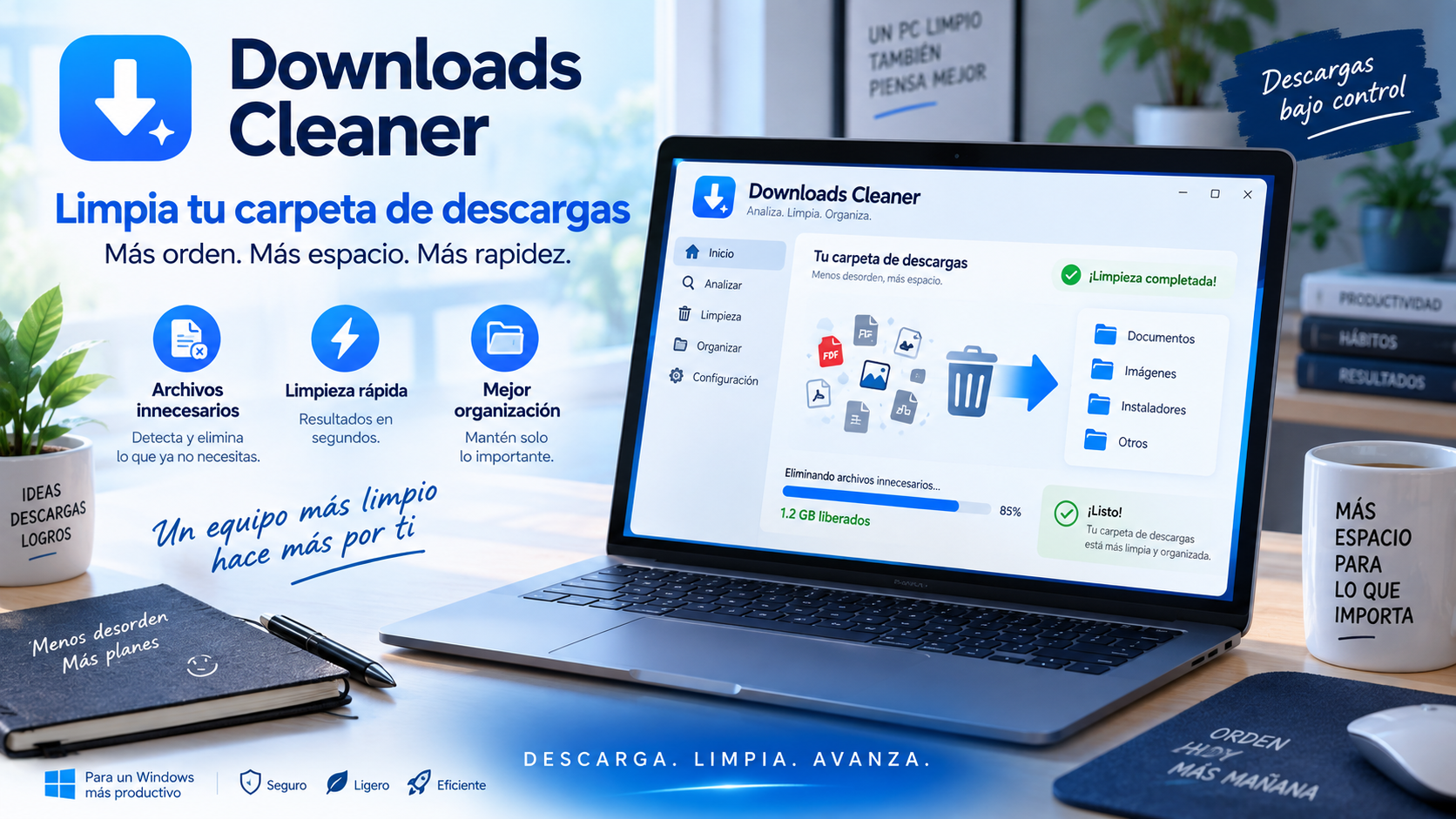
What is Downloads Cleaner
The Downloads folder often fills up with installers, ZIP files, temporary documents, and files needed only once. Downloads Cleaner helps organize them with filters for file size and days since last modification.
Dynamic sorting lets you quickly see which items are oldest or largest before deciding what to keep or delete.
Key features
Find files that have not been modified for a number of days you choose.
Sort items by size to quickly identify what takes up the most space.
Reorganize the results in real time to facilitate folder review with many files.
It is designed for one specific task: keeping your Downloads folder under control.
Use cases
Find executables and installation packages you have already used and no longer need to keep.
Check documents, ZIPs and attachments downloaded weeks or months ago.
Prioritize larger files to find cleanup opportunities that free up more space.
How to use it
The application analyses the content that has been accumulated in that location.
Filter by days since last modification and sort by size to find files worth reviewing.
Decide which files you no longer need and keep those that remain important.
Guide and tips
The Downloads folder is usually one of the places where more files are accumulated on a computer. Software installers, documents, images, compressed files and other elements can stay there long after they have fulfilled their purpose.
One reason is that Windows does not automatically delete most downloaded files. After months or years of using your computer, you can easily end up with hundreds or even thousands of files you no longer remember downloading.
Downloads Cleaner lets you review this folder using criteria such as file age and size. Focus first on files that have not changed in a long time or that take up a significant amount of storage.
A file’s age alone does not mean it is unnecessary. Before deleting anything, check its name, location, and contents to make sure it is not a document, installer, or other file you still need.
Frequently asked questions
The utility is aimed at locating and managing files according to age and size; the results should be reviewed before they are deleted.
The filter uses the number of days since a file was last modified to help you find files that have not changed in a while.
Yes. Size management is part of its purpose to detect which downloads occupy more space.
No. It is distributed as a single file portable tool based on .NET 10.
You may also like
UtiliTools Pro Desktop
A focused, portable utility designed to handle its task without unnecessary complexity.