
Multiple startup locations
Scan entries in HKCU, HKLM, and startup folders for a more complete overview.
Review apps configured to start automatically through HKCU, HKLM, and startup folders, with a .reg backup before making changes.
The download opens in a new Google Drive tab.
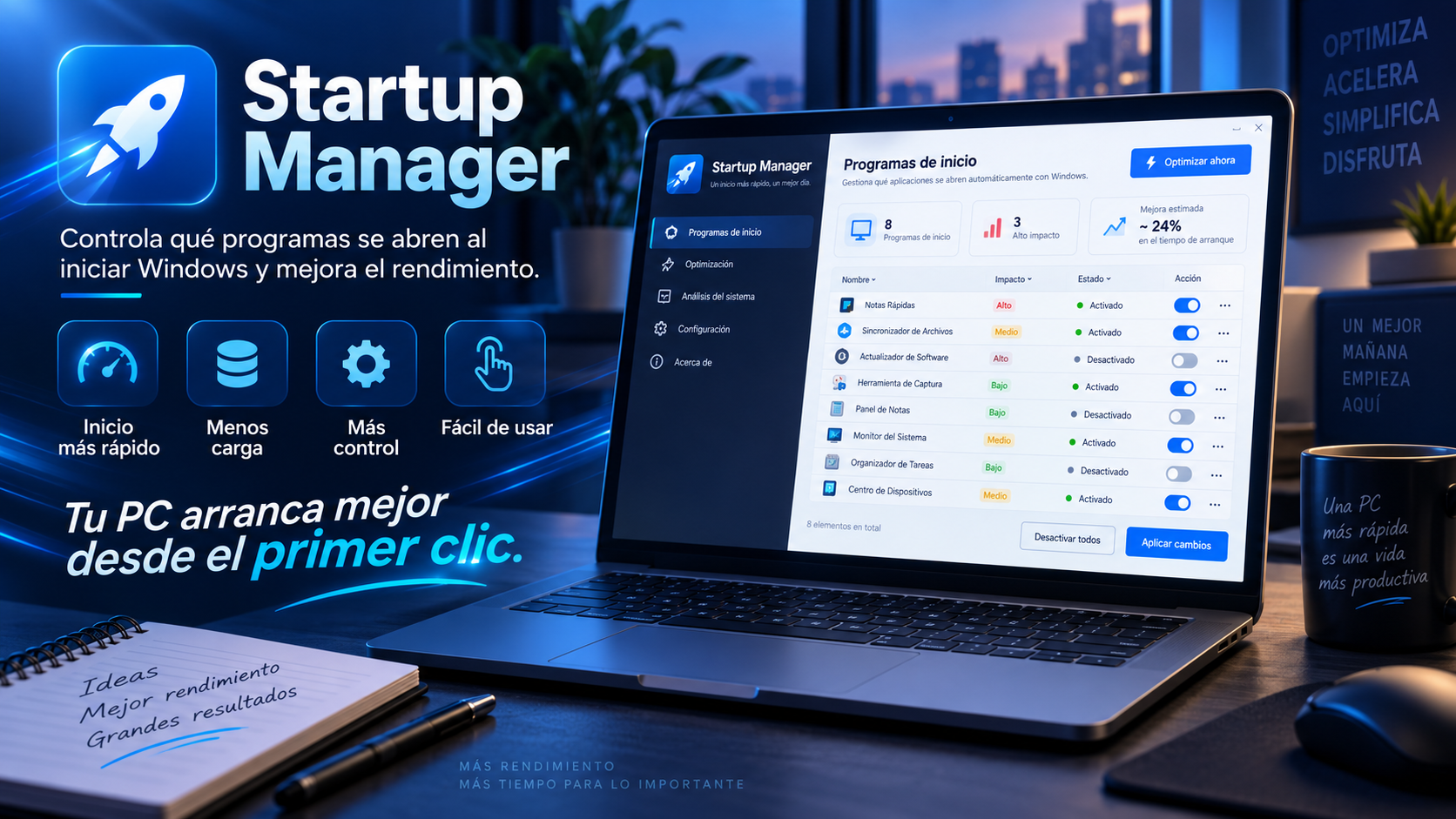
What is Startup Manager
Startup Manager brings together multiple startup sources so you can review which programs load with Windows and decide which you need.
Before modifying Registry entries, it creates a .reg backup on the Desktop so you have a copy of the affected settings.
Key features
Scan entries in HKCU, HKLM, and startup folders for a more complete overview.
Create a .reg backup on your Desktop before modifying the relevant entries.
It allows you to review and disable items that you don't need to automatically load.
It is distributed as an autonomous utility for Windows without traditional installer.
Use cases
Reduce the number of nonessential apps that open each time you sign in.
Check from which location of the system each program is being launched.
Keep a .reg copy before modifying automatic start entries.
How to use it
Grant the access needed to read and manage all supported startup sources.
Identify the applications you know and decide which ones you need when you start Windows.
Keep the automatic backup and change only the items you have reviewed.
Guide and tips
Windows can start certain programs automatically when a user signs in. These settings may come from several locations, including registry entries and startup folders, making applications and services available without opening them manually.
Over time, programs added during app installation may remain set to launch at startup even when they are no longer needed in every session. Reviewing these entries helps you understand which apps are involved in startup.
Startup Manager brings together multiple Windows startup sources, including HKCU, HKLM, and supported startup folders. This gives you a broader view of items configured to run automatically.
Before modifying an entry, check which program it belongs to and what it does. Disabling an item may affect some application features, so Startup Manager creates a .reg backup before changing the relevant entries.
Frequently asked questions
The stated scope includes the HKCU and HKLM Registry hives, as well as the Windows startup folders.
Yes. It automatically creates a .reg file on the Desktop.
Reducing start-up applications may decrease work during boot, but the result depends on hardware and installed programs.
Yes. The app uses elevated privileges to manage the relevant protected locations.
You may also like
Uninstall applications and review possible references that may remain after the process.
Review potential leftover Registry references and manage them after creating a backup.
Audit the entries that different applications can add to the Windows context menu.
UtiliTools Pro Desktop
A focused, portable utility designed to handle its task without unnecessary complexity.