
Official uninstallers
It uses the uninstallation mechanism recorded for each application rather than a generic process.
Run your programs’ official uninstallers, then find leftover Registry keys and back them up as .reg files before cleaning them up.
The download opens in a new Google Drive tab.
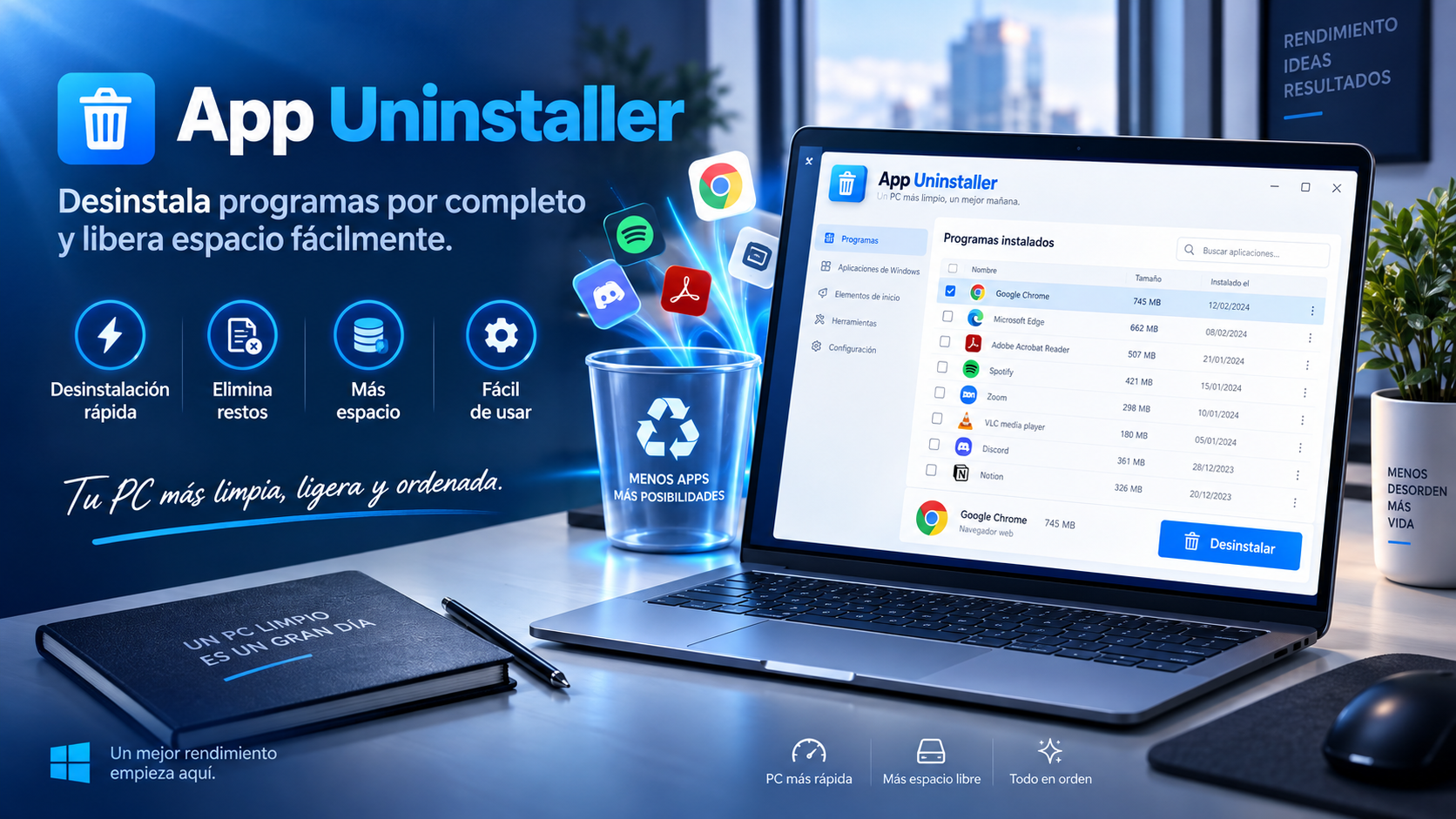
What is App Uninstaller
App Uninstaller launches the relevant uninstaller and waits for it to finish before proceeding to the follow-up scan.
Once uninstallation is complete, the utility can find leftover registry keys associated with the removed software and create a .reg backup before cleaning up the references you choose to remove.
Key features
It uses the uninstallation mechanism recorded for each application rather than a generic process.
Start scanning for leftover entries only after the main uninstallation has finished.
Check potentially orphan keys related to software that was already removed.
Create a backup before changing leftover Registry entries.
Use cases
Check keys that can remain after completing a normal uninstallation.
Combine uninstallation with a follow-up review, without blindly deleting leftover entries.
Manage app removal and the follow-up check for leftover references in one place.
How to use it
Choose the app you want to remove and launch its registered uninstaller.
The utility allows the official process to be completed before starting the subsequent analysis.
Review the keys found, keep the .reg backup, and remove only entries you can confidently identify.
Guide and tips
When you uninstall a Windows program, its official uninstaller removes the main application components. Depending on the software, some settings, references, or Registry keys may remain afterward.
These leftover entries do not necessarily indicate a Windows problem. Some apps leave settings to preserve user preferences, while others leave references that are no longer useful after uninstallation.
App Uninstaller handles uninstallation in two stages. First, it runs the application’s registered official uninstaller and waits for it to finish. It can then scan for leftover Registry keys associated with the software you just removed.
Review Registry entries carefully. A match does not automatically mean a key is safe to delete. Check the results, keep the .reg backup, and remove only entries you can clearly link to the uninstalled program.
Frequently asked questions
Yes. It runs the registered official uninstallers and waits for them to finish.
Yes. After uninstalling software, it can analyze leftover Registry keys associated with it.
Yes. The above architecture includes .reg backup generation for the later cleaning stage.
Yes. It is a portable uninstaller in a single file.
You may also like
UtiliTools Pro Desktop
A focused, portable utility designed to handle its task without unnecessary complexity.