
Entry review
Check the commands and extensions that are integrated into the Explorer's context menu.
Review, back up, and manage File Explorer context menu entries to remove unwanted or unnecessary options and keep your right-click menu organized.
The download opens in a new Google Drive tab.
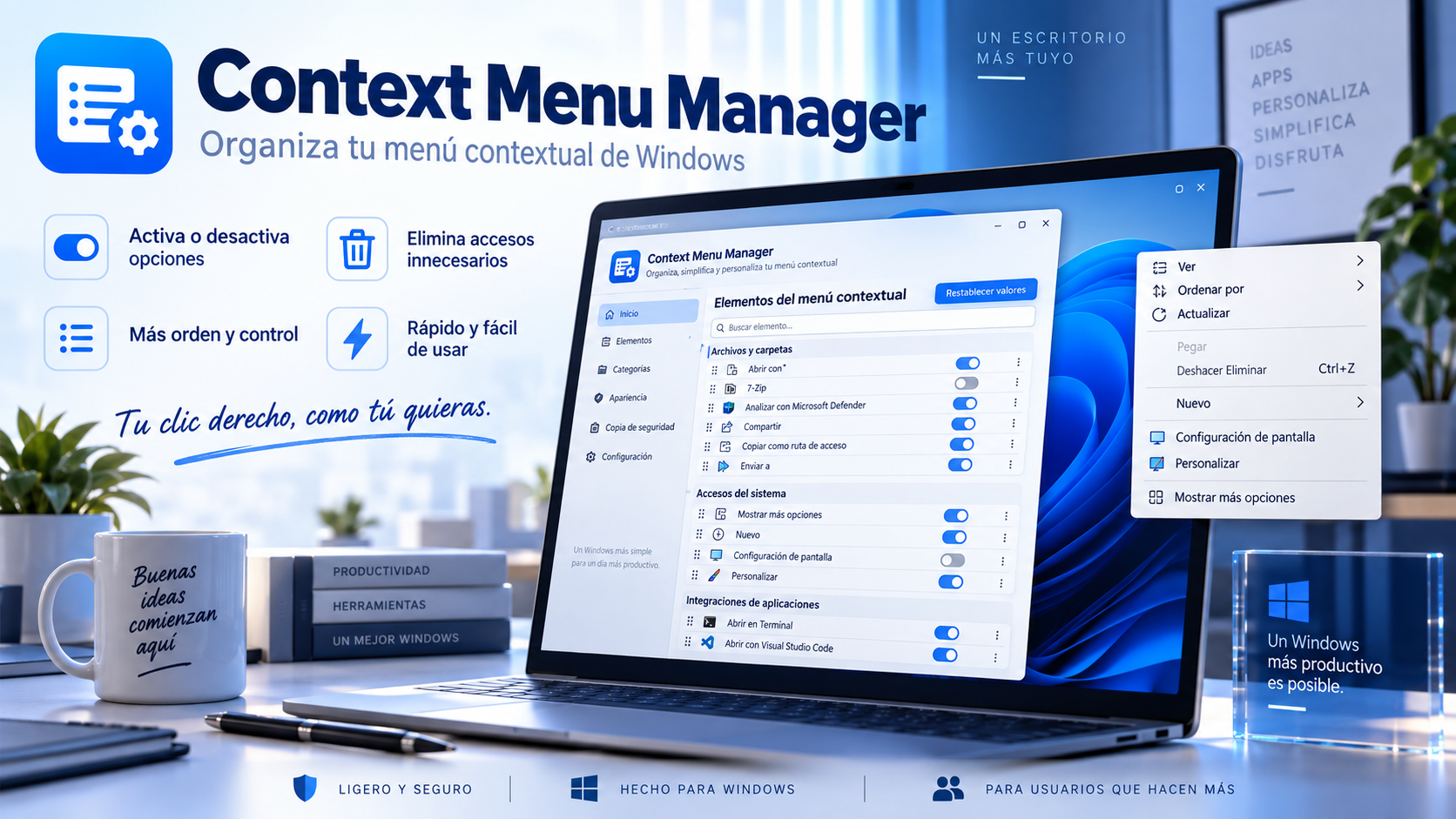
What is Context Menu Manager
Many applications add commands to the Windows context menu. Over time, that menu can accumulate options that you no longer use or that belong to deleted software.
Context Menu Manager lets you review these entries, keep a backup, and remove selected items with elevated privileges when changes affect protected shell handlers.
Key features
Check the commands and extensions that are integrated into the Explorer's context menu.
Keep a copy of the configuration before removing elements to facilitate a recovery.
Choose which unnecessary or unwanted entries you want to remove without touching the ones you continue to use.
Requests the privileges necessary to manage protected elements of the Windows shell.
Use cases
Shorten cluttered lists created by multiple installed applications.
Review leftover commands that remain visible after the original application has been removed.
Keep only the options you really use when working with files and folders.
How to use it
Approve the UAC prompt when needed to view or modify protected entries.
Identify the options you want to manage and keep a copy before changing them.
Remove only those entries you recognize as unnecessary or unwanted.
Guide and tips
Many Windows apps add commands to File Explorer’s context menu for quick access to specific features. For example, an archiving app may add ZIP creation options, while an editor may add commands for its own file types.
As you install and uninstall programs over time, some of these entries may become unnecessary. The context menu can end up with so many options that it is harder to find the functions you actually use.
Context Menu Manager allows you to audit available entries and review which applications or components are associated with them. This way you can identify options that you no longer use and manage the configuration from a single location.
Context menu entries should not be deleted simply because they are unknown. Some are legitimate components of Windows or applications you still use. Before making changes it is advisable to identify each element and keep the backup available to be able to recover the configuration if necessary.
Frequently asked questions
Yes, some shell entries are protected and require elevated privileges to edit.
No. Many are part of legitimate Windows features or installed applications. Review each item before removing it.
Yes. The stated purpose includes audit and backup before the context menu is cleaned.
Yes. It is distributed as single file portable software.
You may also like
UtiliTools Pro Desktop
A focused, portable utility designed to handle its task without unnecessary complexity.