
Restart Manager API
Identify precisely which processes or applications keep the file locked.
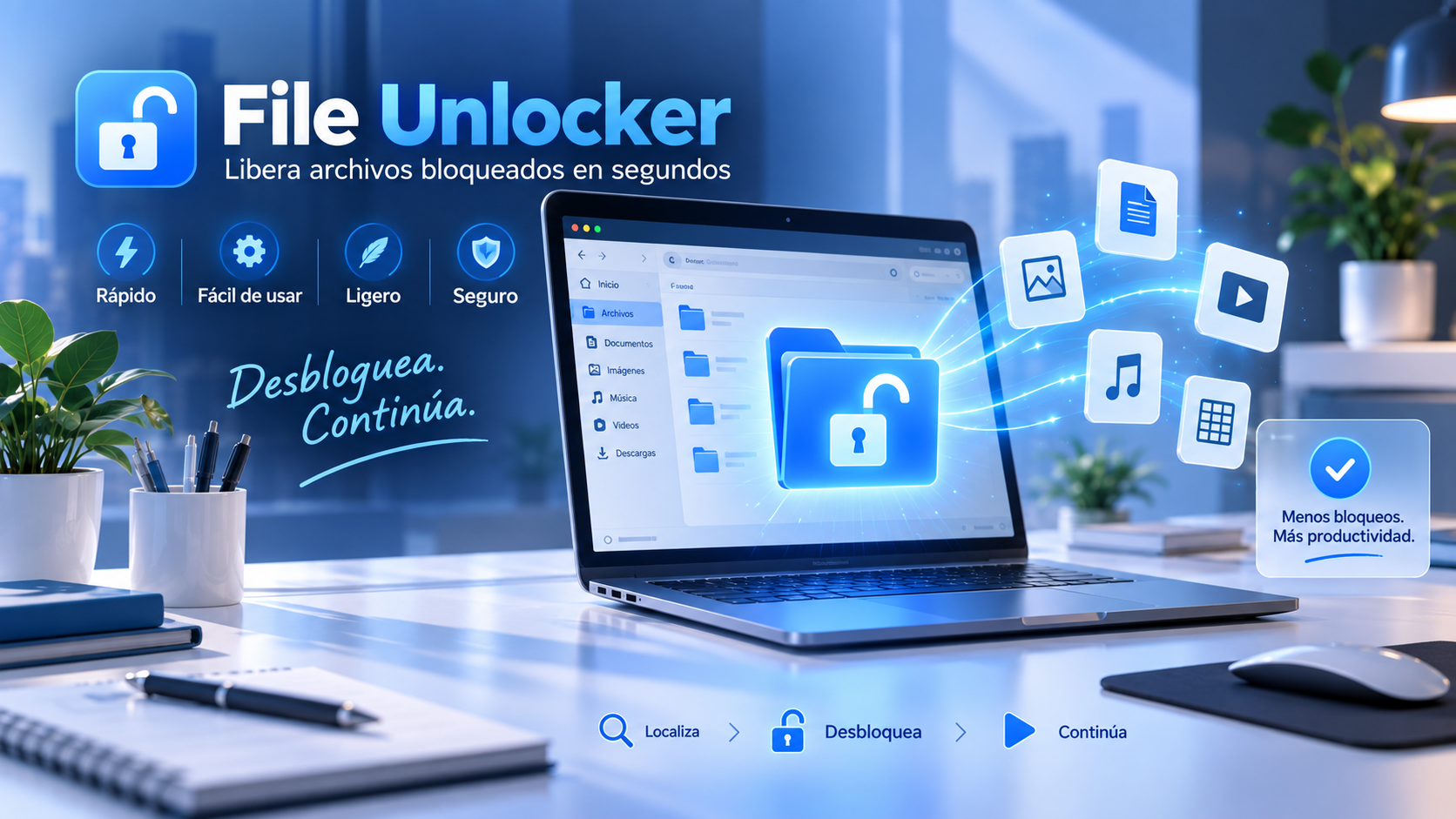
Solve the classic Windows message that indicates that a file is being used by another program. File Unlocker identifies which process keeps it locked and helps you release it to be able to delete, move it or rename it.
Portable executable in a single file. The download opens in a new Google Drive tab.
Guide and tips
Windows can prevent a file from being removed, moved or renamed when another process or application keeps the resource open. This is usual with files used by programs, system services or applications that are working in the background.
The message that a file is in use by another program does not always identify the app locking it. If closing your usual apps does not solve the problem, you may need to find the process keeping the file locked.
File Unlocker uses the Windows Restart Manager API to find processes associated with a locked file. This lets you identify which app or process is using the file before trying to unlock it.
Before unlocking a file, check which process is using it. Some locks are needed while an application is working with the file, so review the results before ending processes or making changes.
What it does
When Windows shows that a file is being used by another program, File Unlocker uses the Restart Manager API to accurately locate which process or application keeps the lock.
Once the lock is identified, the utility can release the resource or close the handle responsible so you can continue with your task.
Key features
Identify precisely which processes or applications keep the file locked.
It can integrate with the Windows right-click menu so you can unlock files directly from any folder.
Unlock the file so you can delete, move, or rename it without delay.
Runs as a standalone executable in a single file, with no lengthy installation or external dependencies.
When to use it
Unlock files that Windows cannot delete because another process is still using them.
Recover control when you need to move a file and Windows reports it is in use.
Release file locks so you can rename the file without restarting your computer.
Useful for system cleanup, technical support, and files locked by background processes.
How to use it
Choose the file Windows keeps locked or access File Unlocker from the context menu.
File Unlocker checks Windows to identify the process or app keeping the file locked.
Unlock the file and try deleting, moving, or renaming it again without restarting your PC.
Quick access
File Unlocker can be integrated into the right-click menu of the File Explorer, allowing you to launch the utility on a problem file directly from the folder you are working on.
Autonomy
No lengthy installation is needed. The app comes as a standalone executable, ready to use whenever you encounter a locked file.
Frequently asked questions
File Unlocker identifies which Windows process is locking a file and helps you unlock it so you can delete, move, or rename it.
Resolve the common Windows warning that a file is in use by another program and cannot be deleted, moved, or edited.
Uses the Windows Restart Manager API to identify the processes or applications locking the file.
Yes. You can integrate with the Windows context menu to quickly access the unlocking function directly from the File Explorer.
No. File Unlocker is a portable, standalone executable in a single file, with no lengthy installation or external dependencies.
In many cases, no. File Unlocker is designed to release the locked resource so you can access the file and keep working without restarting Windows.
The download is currently hosted on Google Drive. The download button opens the file in a new tab so you can continue from there.
You may also like
Find the process locking a file and unlock it so you can delete, move, or rename it without restarting Windows.
Open download in Google Drive ↗